




Common Robot Vacuum Navigation Problems and Causes
Robot vacuum navigation issues are common but easy to fix once you know the cause. This section explains the most frequent problems, their causes, and practical solutions.
Obstacle Recognition Errors
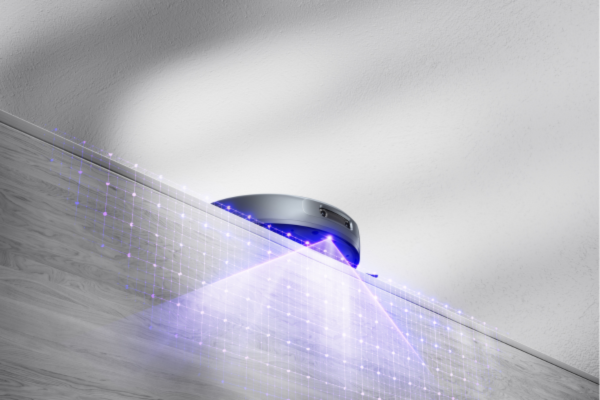
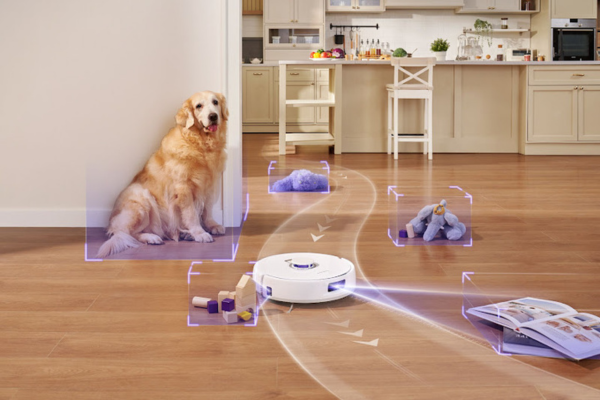
A robot vacuum depends on its sensors and cameras to detect and avoid obstacles. When these are blocked or dirty, the vacuum may bump into furniture, miss edges, or spin in circles.
Possible causes:
- Dust or hair covering edge or obstacle sensors
- Low lighting that limits camera detection
- Reflective or dark surfaces interfering with laser mapping
How to fix:
- Power off the vacuum and clean all sensors with a soft cloth
- Ensure rooms are well-lit during cleaning
- Avoid high-gloss floors or reflective surfaces that confuse sensors
Models like the Narwal Freo Z Ultra combine dual RGB cameras, LiDAR 4.0 navigation, and AI chips to recognize over 200 household obstacles with millimeter precision. Keeping sensors clean maintains this accuracy and prevents unnecessary collisions.
[cta:narwal-freo-zultra-robot-vacuum-mop]
Repeated Cleaning of the Same Area
If your robot keeps covering the same area, it may be due to corrupted or outdated mapping data.
Possible causes:
- Internal map data errors or layout changes
- Weak Wi-Fi connection interrupting navigation
- Sensor misalignment or partial blockage
How to fix:
- Rebuild the map through the mobile app
- Ensure a strong Wi-Fi signal and clear floor visibility
- Update firmware and perform a full mapping cycle uninterrupted
The Narwal Freo Z Ultra and Freo Pro use AI DirtSense™ and Freo Advice 1.0 algorithms to adapt maps dynamically after every cleaning cycle. This helps avoid repetitive cleaning and ensures full room coverage.
Difficulty Returning to the Dock
When a robot vacuum cannot find its base, it’s often a navigation or obstruction issue.
Possible causes:
- Dock positioned in a corner or obstructed area
- Weak Wi-Fi or low battery during return path
- Clutter blocking the line of sight
How to fix:
- Place the dock on a flat surface with at least 1 meter of clearance on all sides
- Remove cables or furniture near the dock
- Keep the robot connected to the app during cleaning and docking
The Narwal Freo X Ultra uses triple-laser navigation with LiDAR 4.0 to detect its docking station precisely—even in complex or cluttered environments.
[cta:narwal-freo-x-ultra-robot-vacuum-mop]
Getting Stuck or Lost
Robots often get stuck under furniture or tangled in cords when their movement sensors are restricted.
Possible causes:
- Narrow spaces or tangled power cords
- Thick rugs that restrict wheel motion
- Debris buildup on wheels or brushes
How to fix:
- Clear cluttered areas and cables before cleaning
- Clean the wheels and check for free rotation
- Use virtual barriers or “no-go zones” in the app
The Narwal Freo Pro features millimeter-level 3D obstacle avoidance and EdgeSwing technology, allowing it to maneuver smoothly around furniture and avoid getting trapped in tight corners.
Mapping Inaccuracy or Lost Map
When a robot vacuum “forgets” its layout or shows wrong room shapes, the mapping data may be incomplete.
Possible causes:
- Interrupted mapping sessions
- Frequent furniture rearrangements
- Outdated app or firmware
How to fix:
- Allow the robot to complete a full mapping run without interruption
- Keep large furniture and the dock in fixed locations
- Regularly update firmware and the app
AI-enhanced models such as the Narwal Freo Z10 Ultra and Freo Z Ultra use LiDAR 4.0 and AI DirtSense™ systems to improve mapping precision continuously, ensuring smarter navigation and fewer errors over time.
[cta:narwal-freo-z10-ultra-intelligent-in-mind-deep-in-clean]
|
Problem |
Likely Cause |
Recommended Fix |
|---|---|---|
|
Obstacle recognition failure |
Dirty sensors or poor lighting |
Clean sensors and ensure lighting |
|
Repeated cleaning |
Outdated or corrupted map |
Reset or rebuild map via app |
|
Fails to dock |
Obstruction or weak Wi-Fi |
Relocate dock, clear pathway |
|
Gets stuck |
Cluttered area or tangled cords |
Declutter, set virtual barriers |
|
Map errors |
Interrupted mapping or outdated firmware |
Complete mapping and update software |
Most robot vacuum navigation problems come from blocked sensors, outdated software, or a cluttered environment. Keeping sensors clean, updating firmware, and giving the robot a clear path greatly improve performance. With AI DirtSense™, LiDAR 4.0, and triple-laser navigation, Narwal’s Freo Series models deliver stable, intelligent cleaning that adapts to your home layout with each run.
Step-by-Step Troubleshooting for Robot Vacuum Navigation Issues
Robot vacuum navigation issues are often caused by simple and fixable factors. This section explains the most effective steps to troubleshoot and restore your robot’s navigation performance. Each step can be done at home without professional repair.
1. Clean the Sensors and Wheels
Dirty sensors are one of the most common causes of navigation problems. Dust or hair can block the sensors and prevent the robot from detecting obstacles or edges.
Steps:
- Turn off and unplug your robot vacuum.
- Use a soft, dry cloth or cotton swab to gently wipe each sensor—especially cliff, obstacle, and edge sensors.
- Check the wheels for tangled hair or debris and remove anything that may restrict movement.
Clean sensors allow the robot to “see” its surroundings clearly, improving obstacle detection, wall following, and docking precision. Models in the Narwal Freo Series are equipped with multiple sensor arrays that rely on a clean surface to maintain millimeter-level navigation accuracy.
2. Check the Cleaning Environment
Navigation errors often occur when the robot’s path is cluttered or poorly lit. The robot needs open space and enough light to map accurately.
Tips for preparation:
- Clear cables, toys, curtains, and small furniture from the cleaning area.
- Keep doors open if you want multiple rooms cleaned.
- Ensure the room has moderate lighting; low light can affect camera-based navigation.
- Avoid shiny or black surfaces that can confuse laser or camera sensors.
Narwal robots use LiDAR 4.0 and dual RGB cameras that perform best in well-lit, organized environments. Proper setup reduces missed areas and improves cleaning efficiency.
3. Check App Connection and Settings
Software or connectivity issues can disrupt navigation. Most robot vacuums rely on their companion app for map storage, mode selection, and updates.
What to check:
- Confirm the robot is connected to stable 2.4GHz Wi-Fi.
- Open the app and verify cleaning modes, schedules, and virtual boundaries.
- Make sure “no-go zones” or restricted areas are not accidentally covering active cleaning spaces.
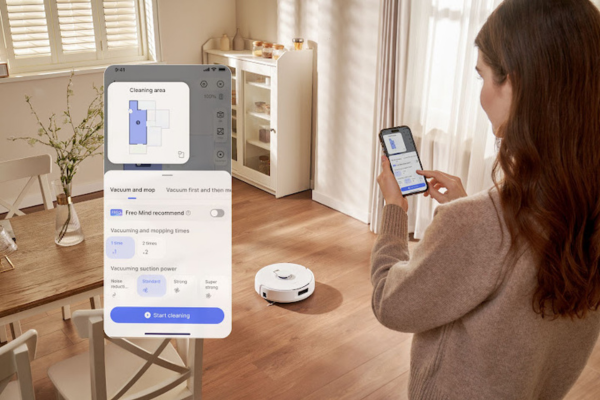
Narwal’s app includes smart features such as map editing, zone cleaning, and AI advice. Adjusting these settings ensures accurate cleaning routes and prevents repetition or skipped areas.
4. Update Firmware and Reboot
Software updates often fix navigation or mapping bugs. If your robot behaves erratically, check for updates first.
Steps:
- Open the robot’s app and look for “Software Update.”
- Connect the robot to its dock with sufficient battery power.
- Download and install the latest firmware.
- Reboot or restart the device once the update is complete.
Firmware updates enhance navigation algorithms, improve obstacle recognition, and expand compatibility with new home layouts. Narwal devices, for instance, periodically release updates to optimize AI DirtSense and mapping logic.
5. Reset the Map or Factory Settings
If the robot continues to navigate incorrectly, perform a map reset or full factory reset.
When to reset the map:
- After moving to a new home or rearranging furniture
- When the robot frequently repeats cleaning in the same area
- When navigation errors persist after updates
How to reset:
- In the app, select “Reset Map” or “Rebuild Map.”
- If issues remain, choose “Factory Reset” to clear all saved data and start mapping from scratch.
A reset allows the robot to relearn your space accurately, eliminating old or corrupted map data. Models like the Narwal Freo Z Ultra and Freo Z10 Ultra can complete quick remapping in under 10 minutes using LiDAR 4.0 and AI guidance.
6. Test with a Short Cleaning Run
After cleaning sensors and resetting settings, run a short test cycle.
Steps:
- Place the robot in the center of an open room.
- Start a “Quick Clean” or “Auto” mode.
- Observe its movement, edge detection, and return-to-dock behavior.
If the robot moves smoothly, detects obstacles accurately, and docks without issue, the navigation system is functioning correctly.
|
Step |
Task |
Key Action |
Expected Outcome |
|---|---|---|---|
|
1 |
Clean sensors and wheels |
Remove dust and hair |
Clear obstacle detection |
|
2 |
Check environment |
Declutter and ensure lighting |
Fewer collisions and missed spots |
|
3 |
Verify app and Wi-Fi |
Reconnect and adjust map zones |
Stable navigation and full coverage |
|
4 |
Update firmware |
Install latest version |
Improved AI and mapping accuracy |
|
5 |
Reset map/settings |
Rebuild navigation data |
Accurate and efficient route planning |
|
6 |
Test cleaning run |
Run quick cycle |
Confirm problem resolved |
Most robot vacuum navigation problems can be fixed through regular maintenance and software updates. Keeping sensors clean, ensuring stable app connections, and performing periodic resets are the fastest ways to restore accurate mapping and smooth operation. With intelligent navigation systems like AI DirtSense and LiDAR 4.0, Narwal vacuums are designed to self-optimize after each cleaning cycle, ensuring better performance over time.
Advanced Fixes for Robot Vacuum Mapping and Sensor Problems
If the basic troubleshooting steps don’t resolve the problem, here are some more advanced tips.
Use the Map Feature
Both the Narwal Freo Z Ultra and Narwal Freo X Ultra have advanced mapping features that let you view the areas the vacuum has already cleaned. If the vacuum is missing areas or repeatedly cleaning the same spots, the map can help you identify the problem. These models use AI-powered maps to adapt to your home’s layout, improving navigation.
Adjust the Cleaning Mode
Sometimes, changing the cleaning mode can help. Most robot vacuums offer different modes, such as:
- Auto mode: The vacuum adjusts its route based on the environment.
- Spot cleaning: The vacuum targets a specific area for thorough cleaning.
- Edge cleaning: The vacuum works along walls and corners for a complete clean.
Switching to a different mode can help the robot navigate better, especially if you're dealing with a particularly messy area or a room with many obstacles.
When to Contact Robot Vacuum Customer Support
If troubleshooting doesn’t solve your robot vacuum’s navigation issues, it’s time to reach out for robot vacuum support. Persistent errors—such as the robot failing to dock, losing its map repeatedly, or showing sensor failure alerts—often indicate hardware or internal calibration problems that require professional help.
Before contacting the support team, gather key details such as your model number, purchase date, and a short description of the issue. Attach photos or short videos if possible, especially when sensors or wheels appear damaged.
For official assistance, visit Narwal Customer Support. Authorized Narwal technicians can remotely diagnose navigation and mapping problems, recommend specific fixes, or arrange for repair or replacement if needed. Professional service ensures your vacuum continues to deliver precise navigation and reliable cleaning performance.
FAQs
Why does my robot vacuum keep bumping into the same furniture?
If your robot repeatedly hits the same objects, its infrared or laser sensors may be dirty, or the furniture itself might be "invisible" to the sensors (e.g., mirrors, glass, or very dark surfaces that absorb light). Gently clean the front bumper and all sensor windows with a dry, soft cloth. If the problem persists, use the app to set a No-Go Zone around that specific piece of furniture.
Can a robot vacuum clean different floor types automatically?
Yes. Modern flagship models are designed to transition between surfaces seamlessly. For example, robots like the Narwal Freo Z Ultra use ultrasonic sensors to detect carpet and automatically lift their mop pads (up to 12mm). This prevents wet mops from touching carpets while allowing the vacuum to increase suction power for deep fiber cleaning.
How can I improve my robot vacuum’s mapping accuracy?
For the most accurate map, follow these steps:
-
Tidy up first: Clear away loose cables, socks, and small toys.
-
Open all doors: Ensure the robot can access every room you want mapped.
-
Provide light: While LiDAR models can "see" in the dark, camera-based models need moderate lighting to identify landmarks.
-
Don't interfere: Avoid picking up or moving the robot while it is in the middle of its initial mapping run.
Why does my robot vacuum "lose" its map after cleaning?
Map loss usually occurs if the robot is manually moved during a cleaning cycle, if the charging dock was moved, or if the sensors were too dirty to recognize the "home" location. It can also happen if the battery dies before the robot reaches the dock, causing the session data to fail to save. Always keep the dock in a permanent, clear location and keep firmware updated to prevent software glitches.
Can lighting really affect robot vacuum navigation?
Yes. Robots that rely on VSLAM (Camera-based) navigation need ambient light to function; in total darkness, they may get lost or skip rooms. Conversely, LiDAR-based models work perfectly in the dark but can be confused by direct, intense sunlight hitting their sensors or by floor-to-ceiling mirrors that create "ghost rooms" on the map.
Why does the robot suddenly start navigating poorly even if it worked before?
Poor navigation in a previously working robot is usually a maintenance issue. Dust buildup on the side sensors can cause "wall-hugging" errors, while hair tangled in the wheels can cause the robot to drift to one side. A quick cleaning of the sensors and wheels often resolves 90% of navigation problems.
Is Wi-Fi important for navigation, or just for app control?
Navigation is handled by the robot's onboard processor, so it can still clean without Wi-Fi. However, Wi-Fi is critical for mapping features. Without a stable connection, the robot cannot sync its location with the app, which may lead to distorted maps, ignored No-Go Zones, or the inability to receive firmware updates that fix navigation bugs.
Do "No-Go Zones" cause navigation confusion?
Only if they are poorly placed. If a virtual boundary is set too close to a narrow hallway or the charging dock, the robot may struggle to find a path around it, leading to "trapped" errors or unnecessary detours. Ensure there is at least 1 meter of clearance around virtual barriers in high-traffic areas.
Can thick rugs or black surfaces confuse the robot?
Yes. Extremely dark or black floors can be misidentified as "cliffs" (drops) by the downward-facing sensors, causing the robot to stop and turn away. Similarly, very thick or "shag" rugs can create enough physical resistance to the wheels that the robot believes it has hit a wall or is stuck.
Is it better to rebuild the map or factory reset the robot?
Always try rebuilding the map first. A factory reset wipes everything, including your Wi-Fi settings and history. Re-mapping is a standard procedure after moving furniture or noticing that the room boundaries in the app no longer match your home's actual layout.
Restoring Efficient Navigation for Your Robot Vacuum
Most robot vacuum navigation problems—like getting stuck, repeating areas, or missing the dock—are caused by blocked sensors, outdated firmware, or cluttered spaces. Regular maintenance and proper setup prevent most of these issues.
Clean the sensors and wheels, clear the cleaning area, and update the firmware to keep your robot’s mapping and navigation system working smoothly. When problems persist, reset or rebuild the map so the robot can accurately learn your home layout.
AI-powered models in the Narwal AU lineup use LiDAR 4.0, AI DirtSense™, and triple-laser mapping to adapt to different surfaces and room layouts. These technologies minimize missed spots, enhance obstacle avoidance, and ensure precise docking even in complex homes.
If you’re comparing the best navigation robot vacuums, look for models that combine advanced mapping systems with adaptive AI learning. Consistent maintenance and software updates will keep your robot cleaning efficiently and navigating intelligently.
In summary: regular care, smart mapping, and updated software are the keys to reliable robot vacuum navigation. With intelligent systems like Narwal’s Freo Series, your floors stay spotless, and your robot always knows the best route home.
