




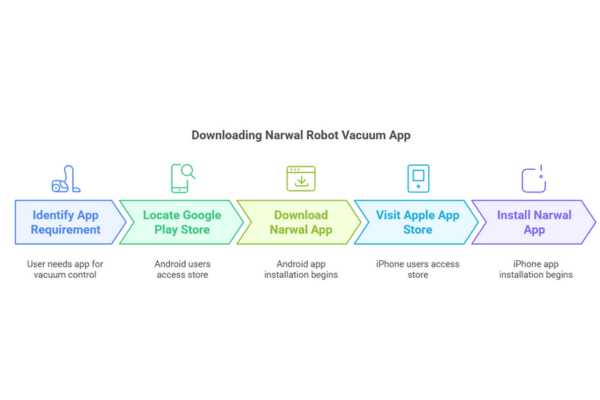
To fully use your Narwal Freo Z Ultra, you need the Narwal robot vacuum app on your Android or iPhone. The app lets you control the robot remotely, schedule cleanings, adjust settings, and access smart features like Freo Mind. With the right setup, the app turns your robot into a more hands-free cleaning assistant.
Quick Summary
-
Download the Narwal app on Android or iPhone, then create an account to begin setup.
-
Connect your robot and phone to the same 2.4GHz Wi-Fi network for pairing.
-
Create a home map so you can divide rooms, set no-go zones, and improve cleaning efficiency.
-
Use the app to choose cleaning modes, adjust suction and mop settings, and enable Freo Mind.
-
Monitor cleaning progress, review reports, and manage mop cleaning and drying from the app.
This guide shows you how to get started step by step. You'll learn how to download the app, create your account, and connect your robot to Wi-Fi. Then you’ll map your home and set up cleaning zones for better efficiency. You can also choose the right cleaning mode, activate Freo Mind, and customize suction or mop levels.
Once everything is set, you can use the app to monitor cleanings, adjust tasks, and manage mop cleaning and drying with just a few taps. Whether you’re new to robot vacuums or setting up a replacement, this guide helps you unlock the full power of the Narwal app.
Download & Install the Narwal Vacuum App (Android & iPhone)
To control your Narwal Freo Z Ultra, first install the Narwal app on your phone.
-
On Android: Go to the Google Play Store and search for “Narwal Robot Vacuum App.”
-
On iPhone: Open the Apple App Store and search for the same app.
-
Make sure your phone meets the app’s system requirements.
-
Once installed, open the app to begin setting up your account.
Create & Log Into Your Narwal App Account
You need an account to access all features in the Narwal vacuum app.
-
Open the app and tap Sign Up.
-
Enter your email, create a password, and complete verification.
-
After signing up, log in using your new account.
-
Once logged in, you can start pairing your robot with the app.
Connect Your Narwal Robot to Wi-Fi
Connecting your robot to Wi-Fi lets you control it remotely and schedule tasks through the app.
Before pairing
-
Make sure your phone and robot are on the same 2.4GHz Wi-Fi network.
-
Confirm the base station is powered on.
To pair the robot with the app
-
Press the pairing button on the robot or base station until the light starts flashing.
-
Open the Narwal app and tap Add Device.
-
Follow the instructions to scan the QR code or enter the serial number.
If the robot doesn’t connect
-
Restart the pairing process.
-
Go to the app's FAQ section under “Why is my robot vacuum not connecting?” for help.
Once connected, your robot is ready for app-based control.
Map Your Home for Smarter Cleaning
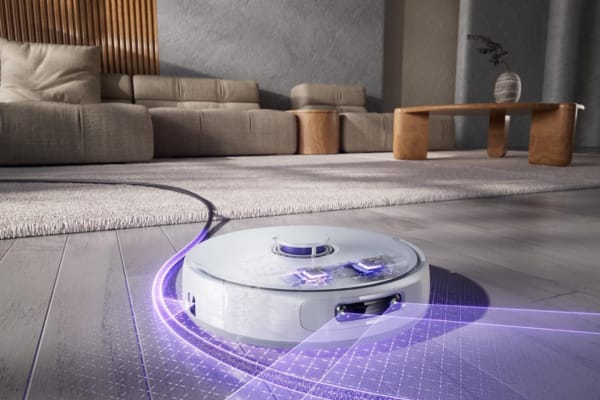
To help your Narwal Freo Z Ultra clean efficiently, create and customize a smart cleaning map in the app.
To start mapping
-
Open the Narwal app and tap Start Mapping.
-
Or press the Start/Stop button on the base station.
-
Make sure the floor is clear of obstacles for accurate scanning.
After the map is created
You can edit the map in the app to:
-
divide rooms for separate cleaning
-
set no-go zones to block off certain areas
-
prioritize specific rooms if needed
If the base station is moved or furniture is changed, it’s best to remap your space for better accuracy.
By customizing your map, the robot can follow a smarter path and avoid unnecessary cleaning.
Choose Cleaning Modes & Enable Freo Mind
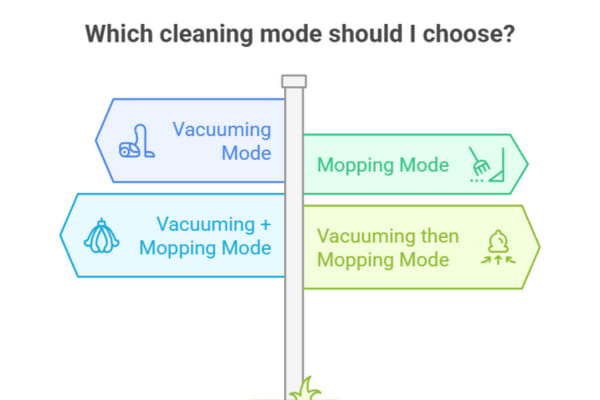
The Narwal Freo Z Ultra offers four cleaning modes. You can set them in the app based on your home and cleaning needs.
Available cleaning modes
-
Vacuuming Mode: Picks up dust and debris.
-
Mopping Mode: Wet cleans hard floors.
-
Vacuuming + Mopping Mode: Performs both in one run.
-
Vacuuming then Mopping Mode: Vacuums first, then mops for deeper cleaning.
Adjust cleaning settings in the app
You can also:
-
change suction power to match floor types
-
set mop moisture based on the surface
-
choose how often the robot cleans
What Freo Mind does
To make cleaning smarter, turn on Freo Mind. It adjusts cleaning patterns automatically and can help:
-
improve cleaning in corners
-
avoid repeating the same path
-
increase overall efficiency
How to enable Freo Mind
-
Go to the cleaning settings in the app and toggle it on.
-
Or press the Freo Mind button on the base station. A light will confirm it is active.
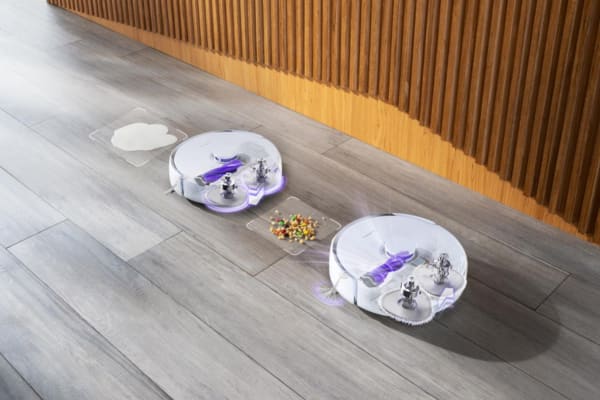
Control, Monitor & Adjust Cleaning Tasks
You can manage cleaning tasks directly in the Narwal app or by using the buttons on the robot or base station.
To start or pause cleaning
-
Tap Start Cleaning in the app.
-
Or press the Start/Stop button on the robot or base station.
-
To pause cleaning, tap Pause in the app or press the same button again.
To end a cleaning session manually
-
Tap End Task in the app.
-
Or press the Start/Stop button again.
The robot will return to the charging base automatically after cleaning or when the task is ended.
To view performance data
Open the app to:
-
see cleaning reports, including coverage and battery usage
-
check cleaning history
-
review past tasks and adjust future settings
Use the Mop Cleaning & Drying Features
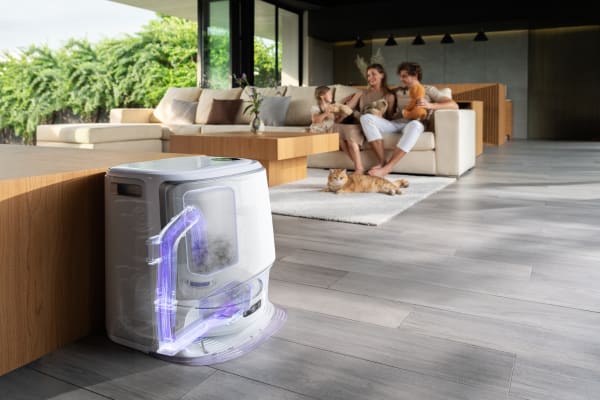
The Narwal Freo Z Ultra can clean and dry its mops automatically to help keep them sanitary.
-
When the robot detects dirty mops, it returns to the base station to clean and dry them.
-
You can adjust how often the mops are cleaned in the app before starting a session.
This function helps reduce manual maintenance and supports more hygienic cleaning.
FAQs
Why is my robot vacuum not connecting to Wi-Fi?
-
Ensure your Narwal Freo Z Ultra and smartphone are on the same 2.4GHz Wi-Fi network.
-
Restart your router and base station, then try again.
-
Long-press the Recall/Exit button on the robot or base station for 2 seconds to enter pairing mode.
-
Open the Narwal robot vacuum app, go to Settings > Devices > Add Device, and follow the instructions.
-
If the connection fails, reset the robot by holding the Restart Robot button for 10 seconds.
Why is my robot vacuum’s map missing or incorrect?
-
Ensure the base station is in the same position as when mapping.
-
Remove obstacles before mapping to avoid incorrect layouts.
-
Open the app, go to Settings > Map Management, and remap your home.
-
If needed, manually edit the map in the app to set no-go zones or adjust rooms.
-
If the issue persists, delete the current map and create a new one.
Why is my robot vacuum not cleaning properly?
-
Empty the dustbin and refill the water tank if needed.
-
Increase suction power or mop moisture level in the app.
-
Inspect and clean the main brush, side brushes, and mop cloths to help maintain performance.
-
Ensure no-go zones or boundaries are not blocking cleaning areas.
-
Restart the robot if it’s not responding.
Final Thoughts: Why the Narwal Robot Vacuum App is the Best for Smart Cleaning
The Narwal robot vacuum app makes smart home cleaning more effortless. From Wi-Fi pairing and home mapping to choosing custom cleaning modes and enabling Freo Mind, the app helps improve automation and convenience.
By following this guide, you can optimize your Narwal Freo Z Ultra and get more efficient, thorough cleaning from every session.
[cta:narwal-freo-zultra-robot-vacuum-mop]