




If your robot vacuum keeps dropping offline, takes ages to sync, or lags in the app, Wi-Fi is often the real issue, not the robot. That is why 5GHz support sounds appealing, but it only helps when your home has strong coverage where the robot actually cleans.
This guide explains what 5GHz Wi-Fi is, how it compares with 2.4GHz, and how to choose a robot vacuum that will stay connected in real Australian homes. It also covers setup, common connection fixes, and simple ways to improve signal strength for smoother day to day cleaning.
Quick Summary
- 5GHz Wi-Fi can improve speed and responsiveness for app control, but it works best where signal coverage is strong
- 2.4GHz usually reaches further and handles walls better, which can be more reliable in larger or multi-level homes
- Narwal Flow is positioned as a leading option with 5GHz support plus strong navigation and low-maintenance mopping automation
- The right choice depends on layout, router placement, and whether the robot can maintain stable signal across its whole cleaning area
- For stable 5GHz performance, focus on router location, reduce dead spots, and consider mesh or an extender if needed
5GHz vs 2.4GHz Wi-Fi: What’s Best for Robot Vacuums?
Understanding the difference between 5GHz and 2.4GHz Wi-Fi is key to picking a compatible robot vacuum.
5GHz Wi-Fi is a high-speed frequency band that delivers faster data transfer and lower latency, making it ideal for smaller homes or apartments. It also offers more non-overlapping channels, reducing interference from other household devices. However, its signal has a shorter range and may struggle to pass through walls or reach distant rooms—your robot vacuum could lose connection if it's too far from the router.
In contrast, 2.4GHz Wi-Fi provides wider coverage and better performance over long distances. It penetrates walls more effectively but tends to be slower and more prone to signal interference, especially in areas with many connected devices.
For most households, 5GHz is a great fit for fast, responsive cleaning in compact spaces, while 2.4GHz remains more reliable for larger or multi-level homes.
Best Robot Vacuum That Supports 5GHz Wi-Fi: Narwal Flow
Looking for a robot vacuum with 5GHz Wi-Fi that delivers powerful, hands-free cleaning? The Narwal Flow is your answer—a smart vacuum and mop combo designed for modern, connected homes. It’s quiet, intelligent, and built to handle everything from carpets and corners to pet hair and sticky messes.
[cta:narwal-flow-robot-vacuum-mop]
Fast & Reliable: 5GHz Wi-Fi Connectivity
Enjoy faster syncing, low-latency mapping, and smoother app control with 5GHz Wi-Fi support. The Flow integrates effortlessly into your smart home, responding instantly to voice commands or app inputs.
FlowWash Mopping System – Always a Clean Mop
Unlike other vacuums that drag dirty pads around, the Narwal Flow self-cleans in real time using:
- 113°F warm water rinse
- 12N pressure scrubbing
- 16-direction spray
- Auto remop & rewash when it detects stains
Result? Cleaner floors and no mess spreading.
Deep Carpet Cleaning with CarpetFocus™
Carpet owners, rejoice. Narwal Flow automatically lifts its mop and boosts suction up to 22,000Pa when carpet is detected. Features include:
- 2X suction boost (vs. industry average)
- 182% improved pickup rate
- 12mm mop lifting to protect carpet fibers
- Auto-reverse for persistent stains
Tangle-Free DualFlow System – Pet-Friendly Design
Tired of tangled hair? The Flow features SGS-certified 0% tangle rate, thanks to:
- Directional roller brush and anti-wrap side brushes
- Designed to resist human, pet, and carpet hair tangles
Intelligent Obstacle Avoidance & Edge Cleaning
Powered by dual RGB cameras and a 10 TOPS AI chip, Narwal Flow detects and avoids 200+ objects—like cables, toys, and shoes—with human-like precision.
- Reaches <5mm from wall edges
- Reverse side brushes clean deep into corners
- Low-profile 3.7” design fits under beds and furniture
All-in-One Self-Cleaning Base
Narwal Flow’s dock does more than charge—it’s a maintenance-free base station that automates cleaning tasks:
- 176°F hot water mop washing
- 104°F warm air drying
- 120-day dust storage (2.5L bag)
- Optional auto water refill & drainage
Smart Voice & App Control
Control it your way with:
- “Hey Nawa” voice assistant
- Compatible with Alexa, Siri, Google
- Narwal App for zone cleaning, scheduling, and routines
- Matter protocol support for seamless smart home integration
- Whisper-quiet operation at ≤60dB
If you want more than just a vacuum, the Narwal Flow delivers a truly autonomous, hygienic, and powerful clean. With 5GHz Wi-Fi, AI precision, and zero-maintenance upkeep, it’s the best robot vacuum for connected households that expect more.
How to Choose the Right 5 GHz Wi-Fi Compatible Robot Vacuum for Your Home
Choosing a 5GHz Wi-Fi robot vacuum depends on more than just Wi-Fi speed. To pick the right model, consider your home size, Wi-Fi coverage, and must-have features. This section explains how to match the vacuum to your home layout, boost signal performance, and evaluate smart features beyond connectivity.
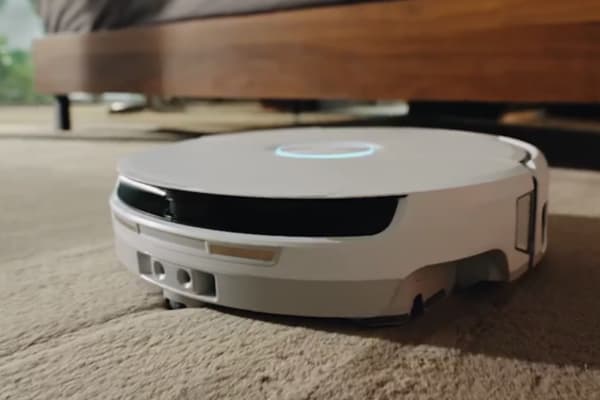
Home Size and Layout
For smaller homes or apartments, a robot vacuum with 5GHz Wi-Fi is ideal. The faster Wi-Fi connection ensures quicker responses and smoother navigation, making cleaning more efficient. A model like the Narwal Flow fits well in these spaces, maintaining strong communication with your Wi-Fi network for optimal performance.
In larger or multi-level homes, 5GHz signals may not reach every corner. If this is your situation, ensure your router can cover the full cleaning area, or consider using a Wi-Fi extender. If coverage is still inconsistent, a 2.4GHz-compatible vacuum may offer better reliability.
Features Beyond Wi-Fi Compatibility
While 5GHz improves speed and responsiveness, the vacuum’s navigation system, mopping efficiency, and self-cleaning features also matter. Look for advanced models like the Narwal Flow that combine AI-powered obstacle avoidance with hands-free upkeep. A smart navigation system not only improves cleaning accuracy but also complements the performance of 5GHz connectivity.
Wi-Fi Signal Strength and Coverage
Even the most advanced 5GHz robot vacuum depends on your router's signal strength. Make sure the router can reach all areas where the vacuum will operate. If you notice weak spots, consider installing a Wi-Fi extender or mesh system to boost coverage and maintain a stable connection.
Other Buying Considerations
Price and brand reputation are also important. While 5GHz Wi-Fi enhances performance, choose a model that offers the right mix of features for your budget. Narwal is known for reliable quality and customer support, which can make a difference over time. If you don’t need all the high-end functions, there are more affordable options that still deliver dependable performance.
How to Connect Your Robot Vacuum to a 5GHz Wi-Fi Network
With a 5GHz compatible robot vacuum, connecting it to your network is simple. Just follow a few easy steps: check that your router supports 5GHz, select the right network, enter your password, and complete the setup in the app. Let’s take a look at the specific steps to get started.
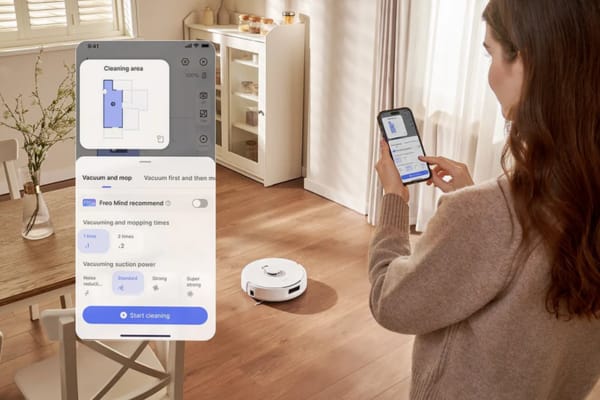
Step 1: Check Your Router's Frequency Band
Before anything else, you need to know which frequencies your router supports. Most modern routers are dual-band, meaning they broadcast both 2.4GHz and 5GHz signals. However, some older routers may only support 2.4GHz.
- Separated SSIDs: Your router broadcasts two separate networks—one for 2.4GHz and one for 5GHz. You will see network names like "Home_2.4" and "Home_5". You can choose which network to connect to.
- Combined SSID: Your router broadcasts both 2.4GHz and 5GHz under the same network name. The router will automatically select the best frequency for your device based on signal strength and compatibility.
Once you know which setup your router uses, you can move on to connecting your robot vacuum.
Step 2: Prepare Your Devices
Make sure your robot vacuum, smartphone, and Wi-Fi router are ready. Place your robot vacuum within 1.5 meters of your router and smartphone for the best connection.
Step 3: Check Your Wi-Fi Settings
Go to your smartphone’s Wi-Fi settings. You’ll see a list of available networks. Find your Wi-Fi network name (SSID) and check whether it’s broadcasting a 5GHz signal. If your router uses a combined SSID, it will show up under a single name (e.g., "Home"). If you have separate SSIDs, select the 5GHz network to connect to it.
Step 4: Connect to the 5GHz Network
Select your 5GHz network and enter the Wi-Fi password to connect. If your phone automatically connects to the 2.4GHz network (when using a combined SSID), temporarily forget the 2.4GHz network. This will prevent your phone from switching back and ensure your robot vacuum connects to 5GHz.
Step 5: Complete the Setup in the App
Once your phone is connected to the 5GHz Wi-Fi, open the app for your robot vacuum. Follow the on-screen instructions to complete the setup. The app will guide you through the process of pairing your vacuum to the Wi-Fi network.
Step 6: Confirm the Connection
After successfully connecting, the app will confirm the connection. You can now control your robot vacuum remotely via the app and enjoy its faster response time thanks to the 5GHz Wi-Fi.
Why Can’t I Connect My Robot Vacuum to the 5GHz Wi-Fi Network?
The problem might be related to compatibility, signal strength, or even your router settings. Let’s explore the possible reasons, such as whether your vacuum supports 5GHz Wi-Fi, if your signal is strong enough, or if your router needs a quick adjustment, and how to resolve them.
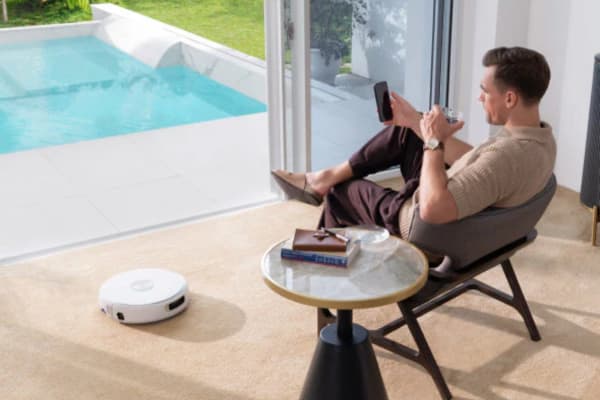
Your Robot Vacuum Doesn’t Support 5GHz Wi-Fi
Not all robot vacuums are compatible with 5GHz networks. Some models are only compatible with 2.4GHz, which has a broader range but slower speeds. To fix this, check your vacuum’s manual or specifications to see if it supports 5GHz. If not, you’ll need to connect it to your 2.4GHz network instead.
Weak Signal or Interference
5GHz Wi-Fi is faster but has a shorter range and is more sensitive to obstacles like walls. If your vacuum is too far from the router or there are obstructions in the way, the signal might not be strong enough. Move the vacuum closer to the router or try using a Wi-Fi extender to boost the signal and ensure a stronger connection.
Router Configuration Issues
Your router might have settings that block devices from connecting to the 5GHz network. Features like Wi-Fi isolation or MAC address filtering can prevent new devices from connecting. To fix this, log into your router’s settings and disable any security features that might be blocking your vacuum. Also, ensure that 5GHz is enabled on your router.
Network Overload
If too many devices are connected to your 5GHz network, it may become overloaded, causing connectivity issues. Disconnect any non-essential devices from the 5GHz network to free up bandwidth. If your router is dual-band (supports both 2.4GHz and 5GHz), consider switching to 2.4GHz temporarily to avoid congestion.
Outdated Firmware or Software
Your vacuum or router might have outdated firmware that’s causing the connection issue. Check for software updates on both your vacuum’s app and your router. Keeping both up-to-date can resolve compatibility issues and improve the connection.
Incorrect Network or Password
Ensure you’re selecting the correct 5GHz network and entering the right password. If your router broadcasts both 2.4GHz and 5GHz networks under different names (SSIDs), make sure you connect to the correct one. Double-check your Wi-Fi password to avoid connection issues.
Quick Troubleshooting Tips:
- Move your vacuum closer to the router during setup.
- Ensure 5GHz Wi-Fi is enabled on your router.
- Check for firmware updates on both your vacuum and router.
- Disconnect extra devices from your 5GHz network.
- Try using a Wi-Fi extender if the signal is weak.
How to Optimize Your 5GHz Wi-Fi Connection for Better Robot Vacuum Performance
To get the best performance from your robot vacuum, optimizing your 5GHz Wi-Fi connection is key. By improving signal strength, minimizing interference, and adjusting some settings, you can ensure a smoother and faster cleaning experience. Let’s explore how you can do this with a few simple steps:
Ensure Strong Wi-Fi Signal Coverage
5GHz Wi-Fi has a shorter range compared to 2.4GHz and can be blocked by walls and obstacles. Place your router in a central location, preferably on a higher surface, and away from heavy furniture or walls. If your vacuum is far from the router, it may struggle to maintain a strong signal.
Use a Wi-Fi Extender or Mesh System
If your home has multiple rooms or floors, consider using a Wi-Fi extender or a mesh Wi-Fi system. These devices can expand your 5GHz network’s coverage, ensuring your vacuum stays connected throughout your home without signal drops.
Avoid Interference from Other Electronics
Other household devices like microwaves, cordless phones, or baby monitors can interfere with 5GHz Wi-Fi. Keep your router away from these appliances to reduce interference. Additionally, try placing your robot vacuum away from these devices to ensure a more stable connection.
Separate SSIDs for 2.4GHz and 5GHz Networks
If your router offers separate 2.4GHz and 5GHz networks, name them distinctly (e.g., Home_2.4 and Home_5). This way, you can manually select the 5GHz network for your robot vacuum, ensuring it connects to the faster and more reliable frequency without switching to 2.4GHz.
Optimize Your Router Settings
Check your router settings to ensure the 5 GHz Wi-Fi is using the least crowded channel. If your router has an auto-select feature, enable it to automatically select the best channel. Otherwise, manually adjust the channel to avoid interference from nearby networks.
Keep Your Router and Vacuum Firmware Up to Date
Regular updates can improve both your router’s and robot vacuum’s performance. Make sure your router firmware and vacuum app are up-to-date to fix bugs and enhance connectivity.
5GHz Wi-Fi Setup Tips for Australian Homes
In many Australian homes, thick brick walls and multi-level layouts can weaken 5GHz Wi-Fi signals. Place your router in a central, elevated location to reduce interference. If you are using NBN, check whether your modem-router supports dual-band broadcasting. Some older models may only default to 2.4GHz. For larger homes, a mesh Wi-Fi system is often the best way to improve signal coverage and maintain a stable connection for your robot vacuum.
FAQs
What is the difference between 2.4GHz, 5GHz, and 6GHz Wi-Fi for robot vacuums?
-
2.4GHz: This is the "long-distance" band. It has the best range and can easily pass through walls, making it the standard for robot vacuums that roam entire homes. However, it is slower and prone to interference from other household electronics.
-
5GHz: This is the "fast lane." It offers higher data speeds and less interference, leading to snappier app responses and faster map syncing. Its downside is a shorter range and weaker wall penetration.
-
6GHz (Wi-Fi 6E/7): The "exclusive lane." It provides massive bandwidth with almost zero interference, but it is currently rare in robot vacuums and requires a high-end router to function.
Does 5GHz Wi-Fi make the vacuum clean more effectively?
No. Wi-Fi affects communication, not mechanical performance. A 5GHz connection improves the speed of live map updates and the responsiveness of remote controls, but it does not change the suction power or the scrubbing efficiency of the mop.
Why is 5GHz not always the best choice for a robot?
Because a robot vacuum is a moving device. While 5GHz is fast, its signal drops off quickly as the robot moves behind furniture or into distant rooms. In larger homes, a 2.4GHz connection is often more reliable because it maintains a stable link to the cloud even when the robot is far from the router.
Can my robot vacuum connect to both bands at once?
Most modern dual-band robots can "see" both bands, but they connect to one at a time. If your router uses a single name for both (Smart Connect), the robot will automatically switch to the most stable frequency as it moves through your home.
Why do some robots fail to connect during setup if I use 5GHz?
Many robots require a 2.4GHz connection for the initial "handshake" during setup. If your phone is locked onto a 5GHz signal while the robot is trying to pair, the process might fail. A common fix is to temporarily ensure your phone is on the 2.4GHz band during the first installation.
Are there robot vacuums that don’t need Wi-Fi at all?
Yes. You can start most robots using physical buttons on the device or the docking station. However, you will lose access to No-Go Zones, scheduling, customized room cleaning, and remote monitoring, which are the features that make the vacuum truly "smart."
How do I check which band my robot is using?
You can usually find this in the Network Information or Settings section of your robot’s app. If you see a frequency around 2400MHz, you are on 2.4GHz; if it says 5000MHz or 5GHz, you are on the faster band.
Is 5GHz Wi-Fi a "future-proof" feature?
Yes. As the 2.4GHz frequency becomes increasingly crowded with smart home gadgets, having a 5GHz-compatible model ensures your robot has a clearer channel to communicate, reducing lag and "device offline" errors in modern smart homes.
What is the best way to prevent connection dropouts?
-
Place the charging dock in a central location with a strong Wi-Fi signal.
-
Use a Mesh Wi-Fi system to eliminate dead zones in large or multi-story homes.
-
Keep the robot's firmware updated to benefit from the latest connectivity patches.
-
Ensure there are no large metal objects or mirrors directly between the router and the dock.
Conclusion
Now that you understand how to choose the right 5GHz Wi-Fi compatible robot vacuum and troubleshoot connection issues, you're ready to take your cleaning experience to the next level. With the right vacuum, optimized Wi-Fi, and a few easy adjustments, your home will enjoy faster, smarter, and more efficient cleaning.
The knowledge you’ve gained empowers you to make a confident choice—one that will save you time and eliminate frustrations. Ready to experience the difference?
Explore our full range of robot vacuums that support 5GHz Wi-Fi, or visit Narwal Australia to learn more.

